


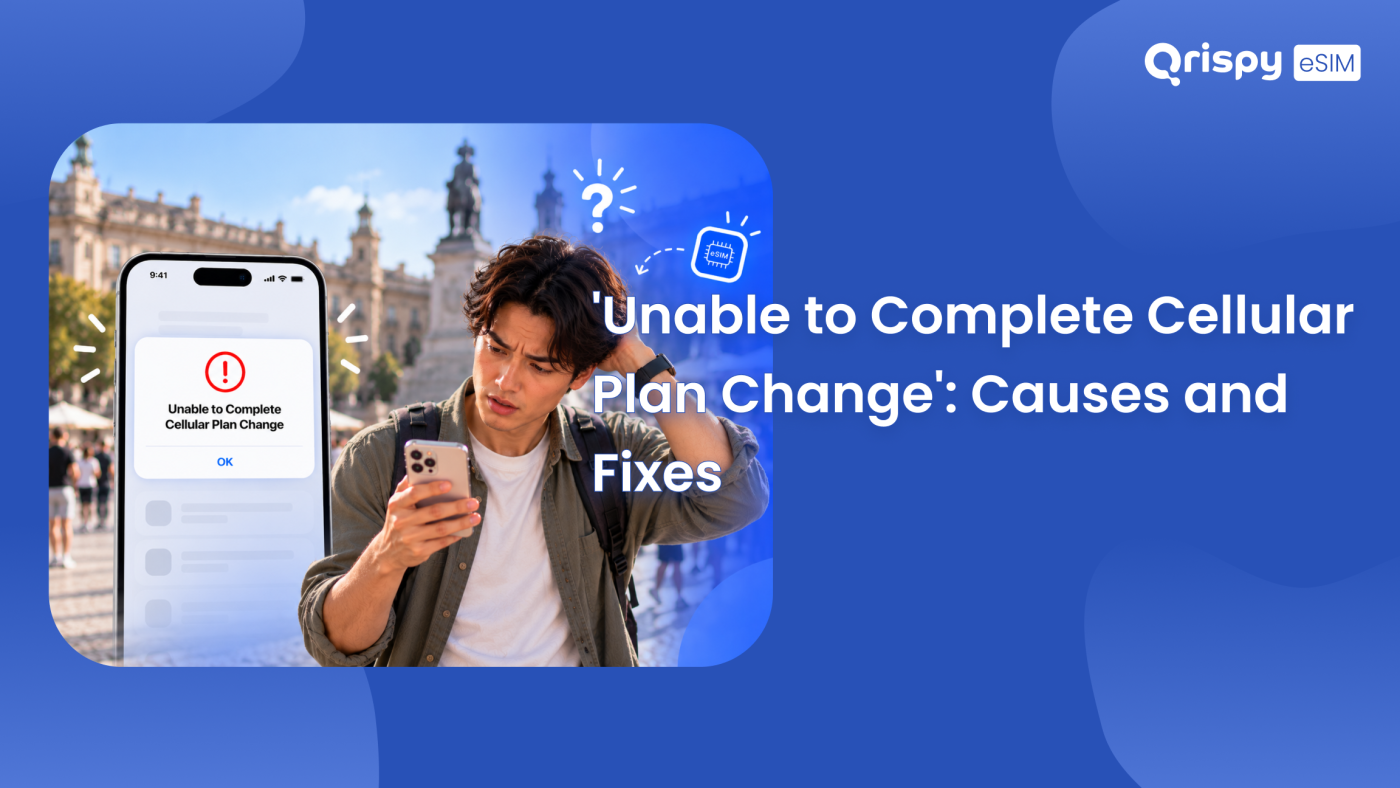
You tapped to add an embedded SIM (eSIM), switch your data line or tidy up an old profile. Instead of a confirmation, your phone said it was “Unable to Complete Cellular Plan Change”. Nothing installed. Nothing changed.
That message almost never means your handset is broken. It means the change you asked for did not finish the round trip between your phone and the remote server that holds your plan. The request timed out, was refused or arrived in a state the server did not expect. Most of the time you can clear it yourself in a few minutes: get onto a stable connection, restart the phone, install any pending system update, switch off anything that intercepts network traffic then try again. If the error survives all of that, the profile itself needs to be reissued by whoever sold it to you.
The wording shifts between platforms. An iPhone tends to use “Unable to Complete Cellular Plan Change” or “Unable to Add Cellular Plan”. Android phrasing depends on the manufacturer: a Pixel usually shows a short message about not being able to download or add the eSIM, while a Samsung handset reports that the attempt to add a mobile plan did not work. The underlying failure is the same on both. This guide explains what the phone is actually trying to do when it shows that message, which causes to rule out first, the fixes in the order a support engineer would run them, the separate iPhone and Android menu paths plus the point at which you should stop troubleshooting and ask for a fresh profile.
What the error message means
A cellular plan change is not a local setting. When you add, remove, transfer or re-enable a mobile line, your phone opens a secure conversation with a remote system that prepares and delivers profiles: the Subscription Manager Data Preparation Plus (SM-DP+) server run by your provider or on its behalf. Your phone identifies itself, asks for the profile that matches your activation code, checks that the profile is meant for that exact device then writes it into the embedded Universal Integrated Circuit Card (eUICC) inside the handset. Each of those steps can fail.
Because the message covers so much ground, it is deliberately vague. The same 6 words appear whether the server refused the request, the connection dropped halfway, the profile had already been downloaded elsewhere or the phone was told it may not change cellular settings at all. Treat it as a category, not a diagnosis.
The changes that can trigger it
It helps to know how wide the phrase “plan change” really is. You can see this error while adding a profile from a Quick Response (QR) code, while converting a physical Subscriber Identity Module (SIM) into an eSIM, while transferring a line from an old handset, while deleting a profile, while renaming a line or while switching which line carries your mobile data. Anything that alters the set of profiles counts.
Common causes worth checking first
Before you change any settings, match what you were doing to the likeliest explanation. The table below covers the situations behind most reports.
| What you were doing | Most likely cause | First thing to try |
|---|---|---|
| Adding a new eSIM from a QR code | The activation code has already been used or has expired. | Ask the seller to reissue the profile. |
| Installing on hotel, cafe or airport Wi-Fi | A sign-in portal is blocking the profile download. | Switch to a home network or to your other line’s mobile data. |
| Turning a physical SIM into an eSIM | Your carrier has not enabled conversion on that account. | Contact the carrier that issued the SIM. |
| Deleting or renaming an existing line | A stuck request or a temporary server fault. | Restart the phone then retry once. |
| Any change on a work phone | A mobile device management (MDM) profile blocks cellular changes. | Ask your IT administrator to allow the change. |
| Any change right after a system update | An unfinished migration or restore. | Wait for signal to return, restart then retry. |
Fixing unable to complete cellular plan change
Work through these in order. Each step rules out a layer, so skipping ahead usually means repeating yourself later. Resist the urge to hammer the retry button: several providers rate limit repeated download attempts, so a burst of failed taps can lock an activation code that would have worked on a calm second attempt an hour later.
Steps that work on any phone
- Get onto a genuinely stable connection. A home Wi-Fi network is ideal. If you only have public Wi-Fi, open a browser first to confirm you are past the sign-in page.
- Restart the handset completely. A power cycle clears the stalled request that causes a surprising share of these failures.
- Switch Airplane Mode on for 10 seconds then off again. Wait for the signal bars to return before you retry.
- Install any pending system update. Profile handling changes between releases and an old build can fail against a current server.
- Turn off any virtual private network (VPN), private relay feature, ad blocker or custom Domain Name System (DNS) profile. These intercept exactly the traffic the download needs.
- Set the date, time and time zone to update automatically. A clock that is badly wrong breaks the security certificates used during provisioning.
- Free up a little storage if the device is nearly full, then try the change again.
What to do on iPhone
Open Settings, then the entry labelled “Mobile Service” on a current UK English iPhone. Older releases call the same screen “Mobile Data”, while a United States English device says “Cellular”. Tap “Add eSIM” to restart the flow. If you are installing from a code, pick the QR code option rather than the transfer option, because transfer needs the old handset nearby and awake.
Check whether the phone is locked to a network. Go to Settings, then “General”, then “About” and look for “Carrier Lock”. If it does not read “No SIM restrictions”, the handset will refuse a profile from a different provider no matter how many times you try. Next, rule out parental or supervision controls. Open Settings, tap “Screen Time”, open the content and privacy restrictions screen, then “Allow Changes”, where “Mobile Data Changes” has to be set to “Allow”. A work-issued iPhone may also carry a management profile, listed under Settings, then “General”, in the device management entry, which quietly prevents the same thing.
As a later step, you can reset the network stack: Settings, then “General”, then “Transfer or Reset iPhone”, then “Reset”, then “Reset Network Settings”. This forgets saved Wi-Fi passwords, so have them to hand. Note down your plan details before you reset anything. For the manufacturer’s own sequence, read Apple’s checklist for a plan that will not add.
What to do on Android
On a Pixel, go to Settings, open the network and internet section, then “SIMs”, then use the option to add a SIM and pick the download route rather than a physical card. On a Samsung handset, the path is Settings, then “Connections”, then “SIM manager”, then “Add eSIM”, where you can scan the code from your service provider. Check for a pending update first. A Pixel keeps that under Settings, then “System”, then “System update”. A Samsung lists “Software update” in Settings.
There are 2 Android specific moves worth knowing. Clearing the cache of the system component that handles carrier provisioning, found by showing system apps inside Settings, then “Apps”, resolves failures that survive a restart. Resetting network settings is the heavier option: on a Pixel it sits under Settings, then “System”, then “Reset options”, while a Samsung keeps it under “General management”, then “Reset”. Google publishes device specific guidance across its official support site if your handset uses a different skin.
When the activation code is the problem
Most retail eSIM codes are single use by design. Once a profile has been downloaded onto a device, that code is spent, even if the download landed on the wrong handset or you deleted the profile 5 minutes later. Scanning it again produces a failure that looks exactly like a network fault.
The same 3 habits cause most of these cases. People scan a code from the screen of the very phone they are installing on, which cannot work because the camera needs a second display. People reuse a code they already tried on an older handset. People let a time limited code sit past its window. If any of those describe you, stop troubleshooting the phone: the profile needs reissuing at the provider’s end.
What your provider needs from you
When you do open a support ticket, a single message with the right details usually saves a day of back and forth. Have this ready before you write:
- Your order or account reference for the plan you are trying to add.
- A screenshot of the exact error, including the full wording.
- The device model and the operating system version you are running.
- The eUICC Identifier (EID) of the handset, shown on iPhone under Settings, then “General”, then “About”. Most Android phones list it under “About phone”.
- Whether the activation code has ever been scanned on another device.
- The Integrated Circuit Card Identifier (ICCID) of the plan if the provider has given you one.
Preventing the error next time
Every plan change is a chance for something to go wrong, so the durable fix is to make fewer of them. Buying from a provider whose app installs the profile directly, with no code to scan, removes the commonest failure point at a stroke. Checking compatibility before you pay removes another: a locked handset will refuse the change however clean your connection is.
Once the error is cleared, this is where Qrispy fits. Qrispy uses a One eSIM model: you install a single profile once, keep it on that device and top it up instead of adding a fresh profile for every trip. Data reaches that same profile 3 ways: a pay as you go Global Wallet whose credits never expire, Fixed Plans for a country or region and Unlimited Data Plans in 90+ countries, where fair use or temporary speed management may apply during very heavy use. Coverage spans 210+ countries and regions. Confirm your handset with the Qrispy device compatibility checker before you buy, then set the Qrispy line as your mobile data line with Data Roaming on. If an install still misbehaves, the Qrispy support team can inspect the profile from their side rather than leaving you to guess.
Frequently asked questions
Does the error mean a faulty phone?
No. In almost every case the handset is healthy and the request simply failed to complete against the provisioning server. Hardware faults show up as a phone that never sees any network at all, not as a single failed plan change. Work through the connection, restart and update steps before you consider a repair.
Can I reuse the same QR code?
Usually not. Retail activation codes are typically single use, so once a profile has been downloaded anywhere the code is spent. If your first attempt failed before anything installed, a second scan may work. If a profile appeared on any device at all, ask your provider to reissue rather than scanning again.
Will a restart delete my eSIM?
No. Restarting only clears the stalled request in memory. Installed profiles live in the secure chip inside your phone and survive a power cycle, a software update and an ordinary restore. The operations that genuinely remove a profile are deleting it yourself or erasing all content on the device.
Why does hotel Wi-Fi break the download?
Guest networks put a sign-in page between you and the internet. Until you accept the terms in a browser, the network answers requests with its own portal, so the profile download receives a reply it cannot use. Sign in fully first. Better still, use another line’s mobile data for the install.
Does the error affect my primary line?
No. A failed plan change leaves your existing lines untouched, so calls, texts and data on your main number carry on as before. That is why it is safe to retry later. The only exception is a change you made to the primary line itself, which simply will not have applied.
Should I reset my network settings?
Only after the simpler steps. A network reset clears saved Wi-Fi passwords along with cached carrier data, so keep those passwords to hand. Restart, update, disable any VPN then retry first. If the error persists across 2 different networks after all of that, a reset is a reasonable next move.
Stay connected anywhere with Qrispy eSIM
Stay connected in 210+ countries with Global Wallet, Fixed Plans and Unlimited Data. No contracts, no roaming fees, no expiry. Download the Qrispy eSIM app today and start your journey.