



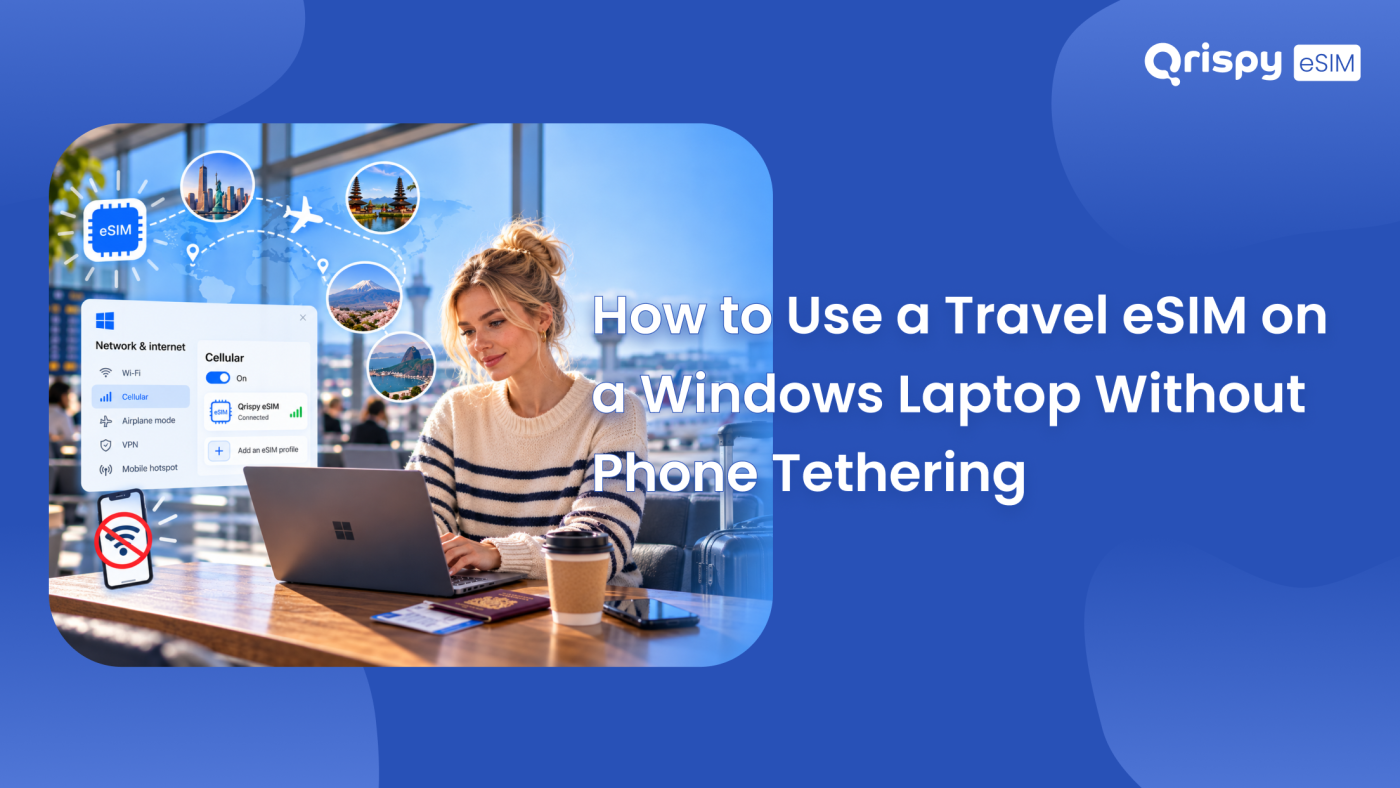
You want your Windows laptop online in another country without draining your phone and without carrying a second gadget. Here is the direct answer. If your laptop has built-in mobile broadband hardware, usually described as a Wireless Wide Area Network (WWAN) module that supports an embedded SIM (eSIM), you can buy a travel data plan, install the profile straight into Windows and connect the laptop on its own. If the laptop has no such module, no download, driver or setting will add cellular to it. Check that before anything else.
Most laptops sold to consumers ship without a modem. Business ranges, detachable tablets and premium ultraportables often offer it as a paid configuration option, which means 2 identical-looking machines from the same range can differ entirely on this point. The good news is that the check takes under a minute and Windows tells you the answer plainly.
This guide covers how to confirm the hardware, where to find the identifiers a provider asks for, how to install an eSIM profile in Windows 11 and Windows 10, how to configure roaming so the connection actually works abroad and how to judge whether a laptop plan is worth buying at all. Sharing a phone connection is a different subject with its own guidance on the Qrispy blog, so this article stays on laptops that carry their own modem.
Does your laptop have cellular hardware?
Windows only shows cellular controls when a modem is physically present, which makes the operating system a reliable detector. Run both checks below, because a disabled or driverless modem can hide from the first check while still appearing in the second.
Checking in Windows settings
Open Settings and go to the network and internet section. On a machine with mobile broadband you will see a “Cellular” entry alongside “Wi-Fi”. Select it and Windows shows the signal state, a “Data usage” summary and, on eSIM hardware, an “eSIM profiles” area. No “Cellular” entry means either no modem or no working driver. Microsoft maintains a step-by-step reference for this process in its guide to using an eSIM on a Windows PC, which is the source to trust when a label here differs from what you see.
Checking in Device Manager
Right-click the Start button, choose “Device Manager” and expand “Network adapters”. A mobile broadband module appears as a modem device, often with the chipset maker in the name. Open the “View” menu and select “Show hidden devices” if nothing obvious appears, because a modem with a missing driver may sit under “Other devices” with a warning icon instead. A device present but faulted is good news: the hardware exists and a driver from the laptop maker will usually revive it.
If there is no modem
A laptop without WWAN hardware has 2 realistic paths to its own cellular connection. A universal serial bus (USB) mobile broadband adapter adds a modem to any machine with a spare port. Many of these accept an eSIM profile or a physical SIM. A separate mobile router creates a private Wi-Fi network that the laptop joins like any other network, which suits a group or a desk setup. Both cost money and take up space, so weigh them against how often you genuinely work away from fixed internet.
Finding the identifiers a provider needs
Providers need to know a device can accept their profile. Support teams also ask for identifiers when an install fails. The 2 that matter are simple to find. The embedded Universal Integrated Circuit Card Identifier (EID) identifies the eSIM chip itself. The International Mobile Equipment Identity (IMEI) identifies the modem hardware.
On current builds of Windows 11 both usually appear inside the cellular section of Settings, with the EID shown under “eSIM profiles” and the IMEI under the cellular properties. Where Settings does not display them, open Command Prompt and run “netsh mbn show interfaces”, which lists the mobile broadband interface together with its device identifiers. Laptop makers also print the EID on a label inside the SIM tray bay or on the original packaging, which is often the fastest route on a machine that has never been connected.
Choosing a travel eSIM for Windows laptop
Laptop data behaves nothing like phone data, so size the plan for what a computer actually does. A phone sips data because apps are built for mobile networks. A laptop syncs cloud folders, pulls operating system updates, keeps several browser tabs alive and treats every video call as a full-quality stream. Assume a working day on a laptop consumes several times what the same day on a phone would.
Before you pay, confirm 4 things with the provider rather than assuming them.
- That the provider supports installation on a Windows device, because support for phones does not automatically extend to laptops.
- That you can obtain the profile as an activation code you can type, since a laptop cannot photograph a code shown on its own screen.
- That the plan allows the volume of data a working laptop needs, rather than a phone-sized allowance.
- That the profile can be reinstalled if a Windows reset removes it. Ask what that costs.
Compare the hardware options honestly too, because the right answer depends on how you travel rather than on which technology sounds newest.
| Option | Best for | Main drawback |
|---|---|---|
| Built-in WWAN with eSIM | Frequent travellers with a supported laptop | Only available if the hardware was specified |
| USB mobile broadband adapter | Adding cellular to an existing laptop | Occupies a port and can be lost |
| Mobile router | Several devices or a shared workspace | Another device to charge and carry |
Installing the profile in Windows
Connect the laptop to Wi-Fi first, because downloading a profile needs an internet connection. Plug in the power supply as well, since an interrupted install can leave a partial profile that has to be cleared before you try again.
Windows 11 steps
Open Settings, go to the network and internet section, select “Cellular”, then open “eSIM profiles”. Choose “Add profile”, then select the option to add a profile with an activation code. Windows asks for the activation code supplied by your provider, downloads the profile and then offers to use it. Give the profile a recognisable name if Windows offers, because a laptop that accumulates several trip profiles gets confusing quickly. Toggle the profile on to connect.
Windows 10 steps
The sequence is the same with older wording. Open Settings, select the network and internet section, choose “Cellular”, then use the option to manage eSIM profiles and add a new profile. Enter the activation code when prompted. If the laptop has never used cellular, Windows may also request the mobile operator profile before it will connect, which the provider supplies as part of its setup instructions.
Codes, QR images and roaming
Windows expects the activation details as text, not as a photograph. When a provider issues only a QR code image, open the code on a second device and read the string it contains. Failing that, ask the provider for the manual details. Every travel profile also needs roaming permitted, because your laptop is connecting to a foreign network by design. Inside the cellular settings, open “Data roaming options” and set it to “Roam” rather than “Don’t roam”. Leaving it on the default is the most common reason a correctly installed profile shows signal yet passes no data.
Keeping the connection reliable
Set the cellular connection as metered so Windows stops treating it like home broadband. Open the properties of the cellular connection and turn on “Metered connection”, which defers most updates and restrains background sync. Then look through the applications that sync silently: cloud storage clients, photo backups and code repositories are the usual culprits. Pausing them for the trip protects the allowance more effectively than any other single step.
Windows will also prefer Wi-Fi whenever it is available, which is usually what you want. If you find hotel Wi-Fi being chosen over a stronger cellular signal, the cellular section holds a setting for using cellular instead of Wi-Fi when the Wi-Fi connection is poor. Turning it on gives Windows permission to switch, though it will spend data doing so.
What a laptop eSIM will not do
- It carries data only, so calls and messages still belong to your phone or to internet applications.
- It cannot be moved to another laptop by copying, because the profile is bound to the chip it was downloaded to.
- It will not appear on a machine without a modem, no matter which drivers or utilities you install.
- It may vanish during a full Windows reset, so keep the reinstallation instructions from your provider.
- It can place your public internet address outside the country you are visiting, which sometimes affects banking logins and streaming.
Buying a plan for the laptop
Qrispy is a global eSIM provider whose One eSIM installs once and stays on the device, working across 210+ countries and regions on unlocked, eSIM-compatible hardware. Being data only suits a laptop perfectly, since a computer never needed a phone number. Note that Qrispy issues 1 eSIM per device for security, so a laptop needs a profile of its own rather than a copy of the profile on your phone. Global Wallet credits sit with your account, so topping up covers whichever device you are using.
Read the compatibility position carefully before you buy. Qrispy support for a phone model does not automatically prove support for a Windows laptop, because laptop modems, firmware and manufacturer restrictions vary far more than phones do. Check your machine against the eSIM device compatibility checker and confirm your specific model with the Qrispy support team before you rely on it for a work trip.
Once the device question is settled, the plan choice is straightforward. Global Wallet is pay as you go, with credits that never expire and rates that vary by destination, shown before you confirm. Fixed Plans are prepaid for 1 country or region across durations of 3, 7, 15 or 30 days. Unlimited Data Plans run in 90+ countries for 3, 7, 15 or 30 days with no data cap, subject to fair use or temporary speed management during very heavy usage or congestion, which is worth knowing before a week of video calls. Unlimited personal hotspot is included on all plans, with usage deducted from your balance or allowance.
Frequently asked questions
Can any Windows laptop use an eSIM?
No. The laptop needs built-in mobile broadband hardware with eSIM support, which is a factory option rather than something added later. Check the network and internet section of Settings for a cellular entry, then confirm in Device Manager. A machine without that hardware can still get cellular through a USB modem or a separate mobile router.
Where is the EID in Windows?
Look inside the cellular section of Settings, where current Windows builds display the EID alongside the eSIM profiles area and the IMEI in the connection properties. If neither appears, run “netsh mbn show interfaces” in Command Prompt. Laptop makers also print the EID on a label in the SIM tray bay or on the original box.
Does Windows scan an eSIM QR code?
Not reliably. A laptop cannot photograph a code displayed on its own screen anyway. Plan to type an activation code instead, which every provider can supply on request. If you only have an image, open it on another device and read out the string it encodes, then enter that string in the Windows profile setup.
Will the profile survive a Windows reset?
Often not. A full reset or a firmware update can clear stored eSIM profiles from the modem. A deleted profile usually cannot be reinstalled from the same code. Keep your provider’s activation details and reinstallation policy before you reset a machine abroad. Reinstall over Wi-Fi rather than at an airport gate.
Is laptop cellular slower than hotel Wi-Fi?
Frequently it is faster, because hotel networks are shared by every guest and often throttled at the router. A cellular connection is yours alone, subject to local network quality and congestion. For video calls the more important factor is stability rather than raw speed. A modern cellular connection is usually steadier than contended public Wi-Fi.
Stay connected anywhere with Qrispy eSIM
Stay connected in 210+ countries with Global Wallet, Fixed Plans and Unlimited Data. No contracts, no roaming fees, no expiry. Download the Qrispy eSIM app today and start your journey.