


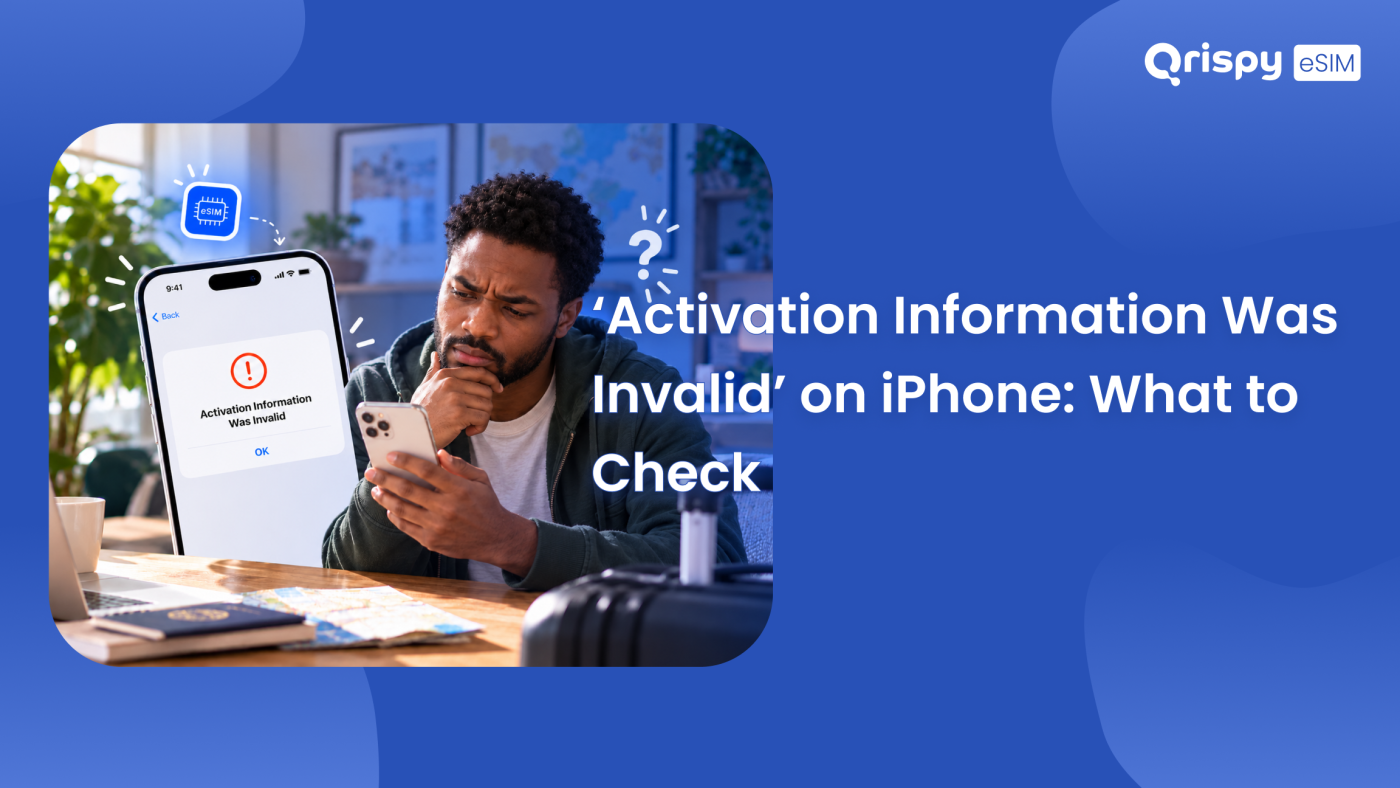
You scanned the Quick Response (QR) code, waited a few seconds and got a flat refusal: “Activation Information Was Invalid”. No line appeared, nothing installed and the data plan you paid for is still sitting unused in your account.
That message almost always means the same thing. Your iPhone reached the activation server, asked for the embedded SIM (eSIM) profile behind the code and the answer came back wrong. Usually the profile has already been claimed, has been cancelled and reissued, was typed with a character missing or was prepared for a different handset. Sometimes the phone is technically online but sitting behind a hotel sign-in page, so the request never leaves the building.
What follows stays on that single error. You get the mechanism behind it, the causes worth ruling out in order, the exact Settings path for every check and the Android equivalents where the wording differs. Wider install failures are covered in the eSIM installation guides on the Qrispy blog, so you will get a link rather than a repeat.
What activation information was invalid iPhone means
An eSIM install is a short conversation between 3 parties: your iPhone, the server holding your profile and the provider that issued it. When you scan a QR code, iOS pulls 2 pieces of text out of it. The first is a Subscription Manager Data Preparation (SM-DP+) address, the server that stores your profile. The second is an activation code, a long string that identifies your particular profile on that server.
Your handset then contacts the address, presents the activation code together with the embedded Universal Integrated Circuit Card Identifier (EID) of its own eSIM chip and asks for the profile to be released. The software that runs that exchange is called the Local Profile Assistant (LPA) and it is built into iOS.
“Activation Information Was Invalid” is what you see when the conversation finished and the answer was no. The server was reachable. It either refused to release a profile for the details it was handed or those details never made sense in the first place.
A refusal is not a timeout
This distinction saves you a lot of pointless troubleshooting. Had your iPhone failed to reach the server at all, iOS would normally complain about being unable to complete the activation or unable to connect. A refusal points at the code, the profile or the device rather than at your bars of signal, so moving nearer the window will not help. Apple keeps a general reference for iPhone activation and SIM errors that is worth reading next to the checks below.
The 6 causes worth ruling out
Before you touch anything, it helps to know what you are hunting for. In practice the refusal comes from a short list.
- The code has already been used. Most profiles can be downloaded once, so an install on an old handset gets refused. So does a second tap after a first attempt that quietly succeeded.
- The profile was cancelled, refunded or reissued. Providers void the original profile the moment they generate a replacement. The old code dies with it.
- A character went in wrong during manual entry. Activation strings mix letters and digits, so a 0 read as the letter O or a 1 read as a lower case L fails every time.
- The connection is filtered rather than missing. Captive portals in hotels, cafes and airports, along with strict office networks and some virtual private network (VPN) apps, can pass a basic connectivity test and still block activation traffic.
- The iPhone is not free to accept a new profile. A carrier lock, an employer or school mobile device management (MDM) profile or a full profile list will all end the install early.
- The profile was prepared for a different device. Some codes are tied to the EID they were requested against, so a profile created for another handset will not install on yours.
Run these checks in this order
Start with the connection, not the signal
Open Safari and load a page you have not visited today. If a hotel or airport sign-in screen appears, accept it and try the install again. Better still, borrow a different connection entirely: switch on a Personal Hotspot from a travelling companion’s phone or use mobile data on your existing line. Turn off any VPN app first, because an active tunnel can route activation traffic somewhere the server does not expect.
Confirm the code has not been used
Check the status of the profile in your provider’s app or account page before you scan anything a second time. A status such as installed or active tells you the code has been consumed. No amount of rescanning will bring it back. Then look at the handset itself: open Settings, tap “Mobile Service” (labelled “Cellular” when your iPhone is set to United States English) and read the list of plans. A line already sitting there under the provider’s name, switched off, explains the whole thing.
Enter the details by hand
Manual entry bypasses the camera and any damage to a printed code. Go to Settings, then “Mobile Service”, then “Add eSIM”, choose “Use QR Code” and tap “Enter Details Manually” at the bottom of the scanner screen. You will be asked for an “SM-DP+ Address” and an “Activation Code”, plus a “Confirmation Code” field that most providers leave empty.
Paste rather than type. If your provider hands you the raw payload, it begins LPA:1$ followed by the address, a dollar sign and then the code. Put only the address in the first field and only the code in the second. Check that no trailing space or line break has come along for the ride.
Look at the profile list
iPhones store several eSIM profiles, though only a limited number can be switched on at once. Older models hold fewer. Open Settings, tap “Mobile Service” and count what is there. Profiles left over from previous trips can be removed by tapping the line and choosing “Delete eSIM”, though treat that as final: a deleted profile usually cannot be reinstalled from the same code, so remove only what you have genuinely finished with.
Restart, update, then retry
Power the iPhone off completely, wait a moment and switch it back on, which clears a surprising number of stuck states. Check Settings, General, “Software Update” and install anything pending, since profile handling belongs to the operating system. Accept a “Carrier Settings Update” prompt if it appears after the restart. Only when the install still fails should you use Settings, General, “Transfer or Reset iPhone”, “Reset”, then “Reset Network Settings”, because that step also wipes saved Wi-Fi passwords.
Rule out a lock or restriction
Go to Settings, General, “About” and scroll to the “Carrier Lock” line. Wording that reads “No SIM restrictions” means the handset is free to accept any operator profile. Anything naming a carrier means the device is tied to that operator and a travel profile will not install. Look in Settings, General for a “VPN and Device Management” entry as well: a work or school profile listed there can carry policies that block new cellular plans. Only the organisation managing the device can lift them.
The same failure on Android
Android does not borrow Apple’s wording. The exact string depends on the manufacturer and the Android version, so expect something about not being able to download the profile, not being able to add the SIM or not being able to reach the mobile operator. Causes underneath are identical and so is the running order of the checks.
On a Pixel, open Settings, tap Network and internet, then SIMs, then the option to add or download a SIM. On a Samsung Galaxy handset, open Settings, tap Connections, then “SIM manager”, then “Add eSIM”. Both flows offer a manual route once the scanner is open, usually behind a help link or a prompt to enter the details instead. Your EID sits in Settings, About phone on most devices, next to the International Mobile Equipment Identity (IMEI). Google publishes device help at Google Support if your manufacturer uses different labels again.
Symptoms, causes and fixes
| What you see | Most likely cause | What to do next |
|---|---|---|
| Refusal within seconds, every attempt | Code already used or voided | Ask the provider to reissue the profile. |
| Refusal only on hotel or cafe Wi-Fi | Captive portal or filtered network | Accept the portal terms or switch connection. |
| Refusal after typing the details yourself | Mistyped character or stray space | Paste the address and code separately. |
| Refusal plus a carrier name under “Carrier Lock” | Handset locked to an operator | Request an unlock from that operator. |
| Refusal and the plan is already listed | Profile installed on a previous attempt | Switch the existing line on instead. |
When to ask for a new profile
Once the checks point at a consumed, cancelled or mismatched profile, retrying is wasted effort. Contact your provider, say which steps you have already run and ask them to void the old profile and issue a replacement against your current EID. Have the EID ready from Settings, General, “About” and quote the order reference, since that is usually all support needs to see the status at their end.
It is also a good moment to think about how often you want to repeat this. Qrispy issues One eSIM per device that you install once and keep on the phone for good, working in 210+ countries and regions. After that first install you buy data against the same profile rather than downloading a new profile for every trip. Choose Global Wallet credit that never expires, a Fixed Plan for a single country or region or an Unlimited Data Plan in 90+ countries, where fair use or temporary speed management may apply during very heavy usage or congestion.
Should an install still refuse after everything here, the Qrispy support team can check the profile status at the server end, confirm whether your handset qualifies and reissue where needed, usually faster than another round of rescanning.
How to stop it happening again
- Install the profile at home on a stable connection, days before you fly, rather than at the gate.
- Keep the confirmation email or in-app record until the trip is over, because a reissue starts there.
- Scan a code once and wait for the setup screens to finish, instead of tapping again when nothing seems to happen.
- Delete old travel profiles before you add another, so the list always has room.
- Leave a VPN switched off during any install, then turn it back on once the line works.
Frequently asked questions
Is my eSIM profile lost?
Not usually. The refusal happens at the download stage, so the plan you bought still exists in your provider’s system even when the code will no longer work. Ask for the profile to be voided and reissued against your current device. The data you paid for follows the new code rather than disappearing with the cancelled profile.
Can I scan the same code twice?
No, in most cases. An activation code is normally single use. The server marks the profile as claimed the moment a device downloads it, so a second scan gets refused, which is exactly the error you are reading about. If the first attempt looked like it failed but the line now appears in Settings, switch that line on instead.
Does a VPN cause this error?
It can. A virtual private network sends your traffic through a distant exit point. Some activation servers refuse requests that arrive from an unexpected route or region, so turn the VPN off, complete the install, then switch it back on. The same applies to strict office networks and content filters that inspect unfamiliar traffic.
Will resetting network settings help?
Sometimes, but keep it as a later step. Resetting clears saved Wi-Fi passwords and returns cellular settings to their defaults, which can clear a stuck configuration that keeps refusing new profiles. Try a full restart, a software update and manual entry of the details first, because those fix the same problem without costing you every saved password.
Does it mean my iPhone is locked?
Not on its own. A carrier lock usually produces its own wording rather than this message, so check before you assume. Open Settings, General, “About” and read the “Carrier Lock” line. Wording that says “No SIM restrictions” means the handset will take any operator profile, while a carrier name there means you need an unlock from the operator that sold it.
Stay connected anywhere with Qrispy eSIM
Stay connected in 210+ countries with Global Wallet, Fixed Plans and Unlimited Data. No contracts, no roaming fees, no expiry. Download the Qrispy eSIM app today and start your journey.