


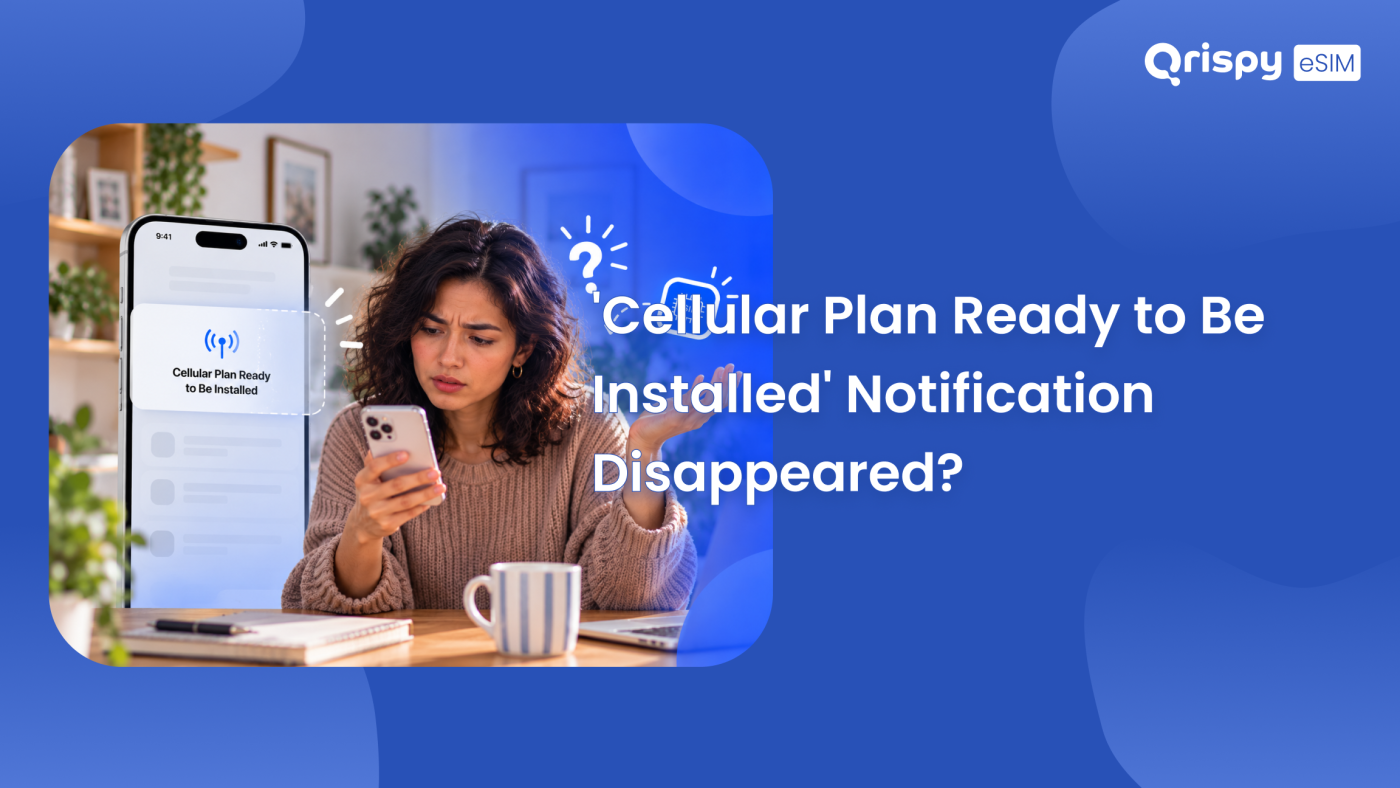
A notification appeared while you were busy. By the time you went back for it the prompt had gone. “Cellular Plan Ready to Be Installed” is not the sort of message you want to lose, especially the day before a flight.
Here is the reassuring part: the notification is only a doorbell. Your embedded SIM (eSIM) profile is not stored inside it. The profile waits on your provider’s server until a device downloads it, so a dismissed, missed or expired prompt costs you nothing. Open Settings, add the eSIM manually and the same install runs without the notification ever appearing again.
This guide covers where that prompt comes from, how to recover it, how to install by hand on iPhone and on Android, why it sometimes never arrives at all and when to ask your provider for fresh details. Planning ahead is a separate question, so timing your install before departure gets a mention rather than a chapter.
Cellular plan ready to be installed missing?
Then install the plan from Settings instead of waiting for the prompt to come back. On iPhone, open Settings, tap “Mobile Service” (labelled “Cellular” when your iPhone is set to United States English), tap “Add eSIM” and follow the setup screens. If your provider sent a Quick Response (QR) code or an activation code by email, that is the route to use. If your operator pushed the plan to the device, the pending plan often appears in the same screen, ready to install without any code at all.
The prompt itself cannot be summoned back on demand. It fires when a plan becomes available for your device and it does not repeat on a schedule, which is exactly why so many people meet this problem.
Where that notification comes from
An eSIM profile lives on a Subscription Manager Data Preparation (SM-DP+) server, which is the machine your phone talks to when it downloads a plan. There are 2 ways this can go once a profile is ready. Your provider may give you a QR code to scan whenever you choose. Alternatively your operator signals the device directly, at which point iOS raises “Cellular Plan Ready to Be Installed” to tell you a plan is waiting.
That second route is carrier provisioning. It is the source of the missing notification. The prompt is generated locally by iOS when the signal arrives. It is a convenience layer on top of the profile, not the profile itself, so losing it removes a shortcut rather than an entitlement.
Why it never comes back
Notifications are transient by design. Once dismissed, cleared by a restart or swept away with the rest of the day’s alerts, iOS has no reason to raise the same prompt again while the underlying plan is still pending. Apple documents the manual route in its guide to setting up cellular service on iPhone, which is the path you want when the shortcut has gone.
Look in Notification Centre first
Spend 30 seconds here before anything else, because the prompt is often present rather than absent. Swipe down from the top of the screen to open Notification Centre, then scroll up through earlier alerts. A prompt buried under 40 messages looks identical to a prompt that never arrived.
There are 2 settings that hide notifications legitimately. Check Settings, Notifications, “Scheduled Summary” to see whether alerts are being held back for a fixed delivery time. Then check Settings, Focus for a mode that silences everything during work or sleep. Neither setting cancels the pending plan, so anything you find there simply explains the delay.
Install it manually on iPhone
Manual installation gives the same result as tapping the notification. Open Settings, tap “Mobile Service”, then tap “Add eSIM”. What you see next depends on how the plan was issued.
- A pending operator plan usually appears at the top of the screen, so tap it and follow the prompts to install without a code.
- A plan bought from a travel provider is installed with “Use QR Code”, then by scanning the image from a second screen or a printout.
- An emailed activation string goes in through “Enter Details Manually”, which asks for an “SM-DP+ Address” and an “Activation Code”.
- A plan moving from an old iPhone uses “Transfer From Nearby iPhone”, with both devices unlocked and close together.
Give the install a minute to finish and leave the phone connected to Wi-Fi throughout. When the setup screens ask which line to use for data, choose the new plan if it is the line you intend to travel on, then confirm that Data Roaming is switched on for that line under Settings, “Mobile Service”, the plan name, “Data Roaming”.
If nothing is waiting in Settings
An empty “Add eSIM” screen with no pending plan means your device has not been signalled or the signal has expired. Check for a software update under Settings, General, “Software Update”, restart the handset, then reconnect to Wi-Fi and look again. A restart is worth doing before you contact anybody, since it prompts iOS to re-check for pending profiles.
Why the prompt never arrived
Working out which of these applies saves you a support call.
- The device was offline, in Airplane Mode or out of coverage at the moment the signal was sent.
- The profile had not actually been released yet, because payment, identity checks or provisioning were still in progress.
- The plan was prepared against a different device, so the signal went to a handset you are no longer using.
- The plan was issued as a QR code from the start, in which case no push notification was ever going to appear.
- A Focus mode or the scheduled summary held the alert back until later in the day.
- The prompt arrived while the screen was locked and cleared along with everything else in that batch.
Most travel eSIM plans fall into the fourth case. Providers that sell directly to travellers hand you a code or run the install inside their own app, so a missing carrier notification tells you nothing about the state of your order.
The same prompt on Android
Android handles this in a comparable way with different words. A pushed plan produces a notification about downloading or activating a SIM. The wording varies by manufacturer and by Android version. Losing it has the same consequences: none, as long as you know the manual path.
On a Pixel, open Settings, tap Network and internet, then SIMs, then use the option to add or download a SIM. On a Samsung Galaxy handset, open Settings, tap Connections, then “SIM manager”, then “Add eSIM”. Both flows accept a scanned code and offer manual entry behind a help link when the scanner is open. Some operators require their own app for provisioning on Android, so check the instructions that came with the plan. Google publishes device help at Google Support for the model-specific labels.
Where to look, in order
| Situation | Where to look | What it means |
|---|---|---|
| Prompt seen, then lost | Notification Centre history | The plan is still pending on the server. |
| Nothing in Notification Centre | Settings, “Mobile Service”, “Add eSIM” | A pending plan installs without any code. |
| Nothing pending in Settings | Your order email or provider app | You probably hold a QR code instead. |
| No code and no pending plan | Provider support | The profile has not been released yet. |
| Plan already listed as a line | Settings, “Mobile Service” | The install finished on an earlier attempt. |
When to ask for a reissue
Contact your provider when Settings shows no pending plan, no code arrived by email and the order is confirmed as paid. Ask them to confirm the profile status at their end and to reissue the activation details to your current device. Give them the eUICC Identifier (EID) of the handset, which you will find under Settings, General, “About” on iPhone or Settings, About phone on Android, since that is how they match a profile to a device.
It is worth noticing what caused the anxiety here, though. Waiting for someone else’s system to push a notification puts your connectivity on their schedule. Qrispy takes the opposite approach: you install One eSIM yourself through the guided setup in the Qrispy eSIM app, it stays on the device permanently and it covers 210+ countries and regions. There is no carrier push to miss, because you start the install when it suits you.
After that first install the profile simply sits there waiting for data. Top up the Global Wallet and spend credit that never expires. Add a Fixed Plan for a single country or region. Take an Unlimited Data Plan in 90+ countries, where fair use or temporary speed management may apply during very heavy usage or congestion. If a step goes wrong, the Qrispy help centre walks through the install screen by screen.
Install before you travel
Do the install at home, on a connection you trust, several days before departure. That single habit removes almost every version of this problem, because a missing prompt at your kitchen table is a minor irritation while the same gap at an airport gate is not. Check the handset first in the Qrispy device compatibility checker, then install, then leave the line switched off until you land if the plan starts on first connection.
Keep the order email until the trip ends. It holds the activation details you will need if anything has to be reinstalled. Searching your inbox is far quicker than opening a support ticket from a foreign airport.
Frequently asked questions
Is my plan still there?
Yes. The notification is only a prompt, so dismissing it does not cancel, delete or expire anything. Your profile stays on the provider’s server until a device downloads it. The plan you paid for remains attached to your order. Open Settings, tap “Mobile Service”, tap “Add eSIM” and the pending plan usually appears without any further prompting.
Can I install without the notification?
Yes. The result is identical. Every eSIM can be installed from Settings using a pending operator plan, a scanned QR code or manually entered details. The notification is a shortcut into that same flow rather than a separate mechanism. Providers who sell travel data usually skip the push entirely and issue a code or run the install inside their own app.
Does dismissing the prompt cancel anything?
No. Swiping a notification away removes it from your screen and nothing else. The pending profile, the order and any payment are unaffected, since none of them live inside the alert. What you lose is the convenience of a single tap, so you open Settings and start the install manually instead, which takes about a minute.
Why did nothing appear at all?
Several ordinary reasons explain it. The handset may have been offline when the signal was sent, the profile may not have been released yet, a Focus mode may have held the alert back or the plan may have been issued as a QR code from the beginning. Check Settings for a pending plan before you assume something has failed.
Should I wait or install manually?
Install manually. Waiting rarely helps, because the prompt does not repeat on a schedule while a plan sits pending. Open Settings, tap “Mobile Service”, then “Add eSIM” and see what is offered. If nothing is pending and no code has arrived, that is the moment to contact your provider rather than watching the lock screen.
Stay connected anywhere with Qrispy eSIM
Stay connected in 210+ countries with Global Wallet, Fixed Plans and Unlimited Data. No contracts, no roaming fees, no expiry. Download the Qrispy eSIM app today and start your journey.