


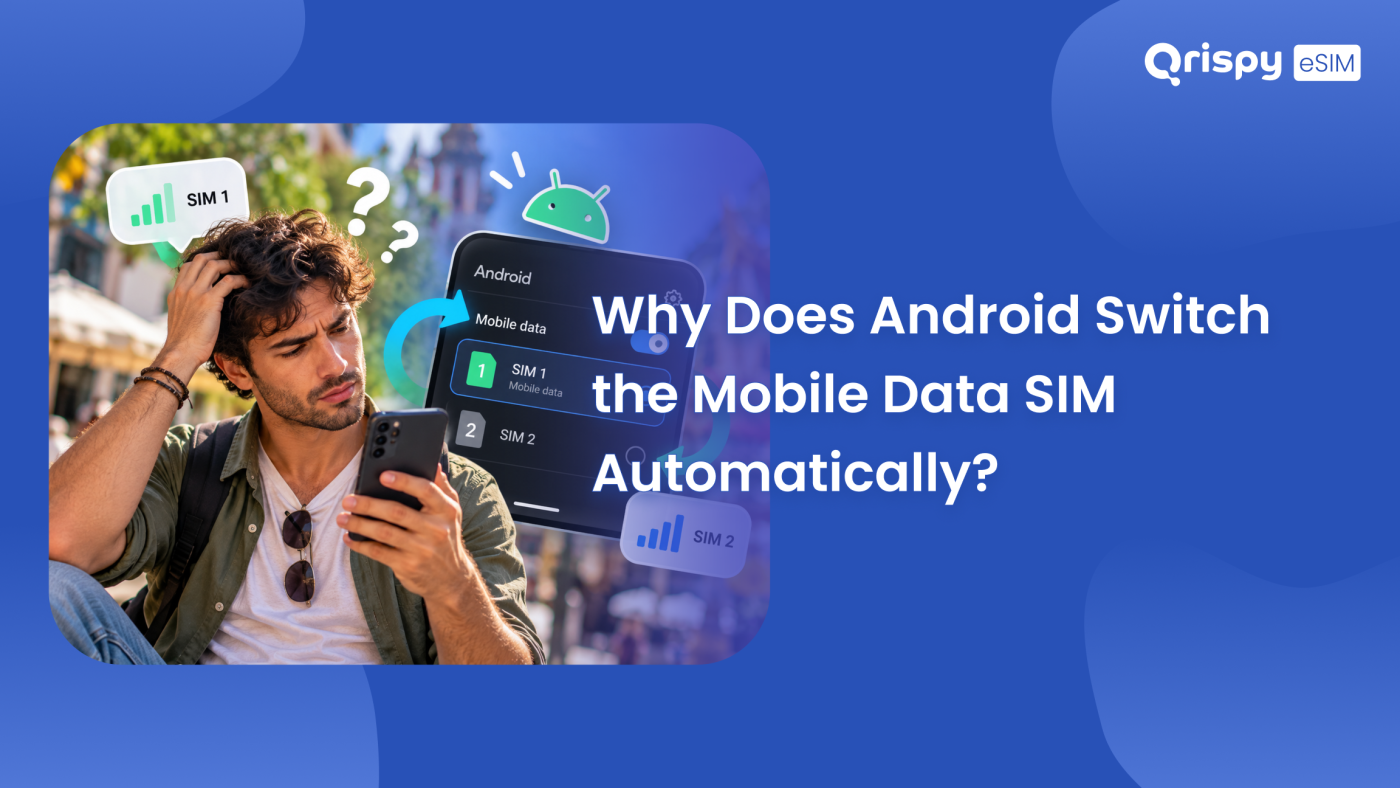
You set the travel line as your data connection before boarding. Somewhere between the gate and the hotel the status bar flips back to your home network, a roaming indicator appears and nothing you touched caused it.
Android moves data between lines because the system ships with a feature called automatic data switching. When your preferred data Subscriber Identity Module (SIM) loses usable signal, fails to attach to a network or is needed for a call on the other line, Android hands the data session across to keep you online. Carrier configuration files and a feature called backup calling can force the same handover.
This guide covers what triggers the change, how to see which line is carrying data right now, where the control sits on Pixel, Samsung, Xiaomi and OnePlus builds and what stops working when you switch it off. It finishes with the dual SIM setup that keeps a travel embedded SIM (eSIM) in charge of data while your home line stays quiet.
Why Android automatically switches mobile data SIM
Android treats 2 active lines as a pair rather than as competitors. On nearly every dual SIM handset sold today only 1 line can carry mobile data at any given moment, so the system needs a rule for what happens when that line stops working. Automatic data switching is that rule. It was written for a real problem: a commuter whose primary network dies in a tunnel while the second line still has coverage.
The feature watches the registration state of your chosen data line. If that line drops to no service, or registers with a network but cannot actually pass traffic, the handset moves the data session to the other line and usually moves it back once the first line recovers. Most builds show nothing in the notification shade while this happens. That silence is exactly why the behaviour feels like a fault when you are abroad.
What the system is actually measuring
Signal bars are a poor guide here. Android checks whether the line has attached to a network, whether a data connection can be established over that attachment and, on several builds, whether a low-level connectivity probe succeeds. A line can display 3 bars and still fail every one of those checks, which is precisely what happens when a travel profile is installed but has not yet been activated in the destination country.
Timing matters too. The first attach after a long-haul flight can take a few minutes, and that window is the most common moment for an unwanted handover, because your home line is often already registered while the travel line is still negotiating.
Conditions that trigger a change
- The preferred data line loses service completely, in a lift, a metro tunnel or a basement hotel room.
- The preferred data line registers on a local network but cannot pass traffic, which is common in the first minutes after landing.
- You answer a call on the other line and the handset lends data to it for the duration.
- A carrier configuration bundle attached to either line tells Android that switching is permitted or expected.
- Backup calling is enabled and your voice line needs the other line’s mobile data to complete a call.
- The phone restarts and reloads a carrier default that overrides the choice you made by hand.
- You install or delete a profile, which reshuffles which line the system treats as preferred.
Google’s own support forum carries reports from Pixel owners whose automatic data switching fires when it is unwanted or fails when it is needed, a reminder that the feature leans on carrier support as much as on your settings. Read the Pixel Phone community discussion of automatic data switching before you assume your handset is broken.
How to see which line is active
Before changing anything, find out what the phone is doing. Pull down the quick settings panel and open the internet or connections tile: on most builds it lists both lines and marks the one currently connected. The status bar helps too, because a roaming indicator next to the signal icon almost always means the home line has taken over.
For a definitive answer, open the per-line data usage screen. Settings shows how much data each line has consumed in the current cycle, so a home line that should be idle but is quietly accumulating megabytes tells you the switch has already happened.
Where the control sits on Android
There is no single universal path, and any guide that claims one is wrong. Manufacturers rename the same feature, move it between screens and sometimes hide it behind a carrier flag. Use the table as a starting point, then search the settings app for “switch” or “SIM” if your build differs.
| Phone family | Where the control sits | Wording to look for |
|---|---|---|
| Pixel and stock Android | Settings > Network & internet > SIMs > the line you want | “Automatically switch mobile data” |
| Samsung Galaxy on One UI | Settings > Connections > SIM manager | “Preferred SIM card”, then “Mobile data” |
| Xiaomi on HyperOS or MIUI | Settings > SIM cards & mobile networks | “Data SIM”, plus a smart dual SIM section |
| OnePlus and Oppo | Settings > Mobile network, or SIM and network | The data preference for each line |
Pixel and stock Android builds
Open Settings, tap “Network & internet”, then “SIMs”, then the line you want to protect. Current Pixel builds place a toggle labelled “Automatically switch mobile data” on that per-line screen, described as using the line when it has better availability. Turn it off on your travel line and the handset will stop handing data back to the home line when coverage dips.
Remember that the toggle is per line rather than global, so review both screens. A restart afterwards is worth the seconds it costs, because a boot is when a carrier default would reassert itself.
Samsung Galaxy phones on One UI
Samsung frames the same decision differently. Settings, then “Connections”, then “SIM manager” gives you a “Preferred SIM card” block where you assign calls, text messages and mobile data to a specific line. Some One UI builds add an option that lends data to whichever line you are speaking on, so check the SIM manager screen and the call settings before you assume the preference is fixed.
Xiaomi, OnePlus and other skins
Xiaomi handsets running HyperOS or MIUI keep the choice under “SIM cards & mobile networks”, with a data SIM selector and a smart dual SIM area that governs behaviour during calls. OnePlus and Oppo devices place it under the mobile network or SIM and network screens. Labels drift between releases, so treat any written path as a hint and verify on the handset in front of you.
What you lose by turning it off
Backup calling and coverage gaps
Backup calling lets your voice line borrow the other line’s mobile data to carry a call when the voice line itself has no usable network. Where a carrier supports it, disabling automatic data switching can disable backup calling as well, because the same underlying handover is what makes it work. Decide which you value more on a given trip and set the phone accordingly.
Emergency calls sit outside this discussion. A handset will attempt an emergency call over any network it can reach, regardless of which line you have nominated for data, so locking your data preference does not compromise your ability to call for help.
Data during calls on older networks
On networks that still route voice over older technology rather than Voice over Long Term Evolution (VoLTE), an active call on 1 line can suspend data on the other. Turn automatic switching off and browsing may stall for the length of a call, which is an acceptable trade against an unplanned roaming session.
The roaming risk while you travel
Picture the sequence that costs money. You land, the travel profile has not yet attached to a local partner, and Android sees a nominated data line that cannot pass traffic. Your home line is already registered with Data Roaming still enabled, so the system moves the session across and the phone spends the next stretch of the afternoon working on your home subscription under its international terms.
Carriers structure that international access in different ways, usually as a daily pass, a bundled inclusion or a per-megabyte rate, and you will not know which one applied until the bill arrives. The defence is a pair of settings rather than a single one: Data Roaming off for the home line, on for the travel line. Leaving the home line switched on for calls and texts costs you nothing in data terms once roaming is closed on it.
Set your travel line and lock it
Once the trigger conditions make sense, the answer is a setup rather than a single toggle. Install a data eSIM before departure, keep the home line active for voice and one-time passcodes, then make the travel line the data line and remove the reasons Android would want to move away from it.
Qrispy suits that shape because it is a data service rather than a second phone number. The Qrispy One eSIM installs once and stays on the device, covers 210+ countries and regions and uses multi-network access with automatic switching to the best available local network, which closes many of the coverage gaps that make Android reach for your home line. Pay as you go from the Global Wallet, where credits never expire and the rate is shown before you confirm, or add a Fixed Plan for a single country. Unlimited personal hotspot is included on all plans, although fair use or temporary speed management may apply during very heavy usage or congestion.
Check your handset on the Qrispy device compatibility checker first, because automatic data switching only exists on phones that can hold 2 active lines. Then pick your destination from the Qrispy eSIM plans and destination selector and install while you still have home Wi-Fi. Google publishes general Android connectivity guidance at Google Support as well.
A dual SIM setup that holds
- Install the travel profile at home, on Wi-Fi, at least a day before departure.
- Label the lines clearly, for example “Home” and “Travel data”, so every settings screen is unambiguous.
- Set the travel line as mobile data and leave the home line as the default for calls.
- Turn Data Roaming on for the travel line and off for the home line.
- Turn off automatic data switching on the travel line so the handset cannot hand data back.
- Restart the phone and confirm both choices survived the reboot.
- Check per-line data usage on your first evening abroad to prove the right line is working.
Frequently asked questions
Why does Android keep changing data lines?
Automatic data switching moves the data session whenever your preferred line loses service or cannot pass traffic, and some carrier configuration files re-apply that behaviour after a restart. Calls on the other line can also borrow data temporarily. Turn the toggle off on the line you want to protect, then restart and confirm the choice held.
Does switching use my home allowance?
Yes, if the home line takes over while Data Roaming is enabled for it, the traffic runs on your home subscription under whatever international terms that plan carries. The handset does not warn you first. Switch Data Roaming off for the home line and leave it on for the travel line to close the risk completely.
Will turning it off break backup calling?
It can. Backup calling relies on the second line’s mobile data to carry a call when your voice line has no network, so disabling automatic switching may disable it on carriers that support the feature. Emergency calls are unaffected, because a handset will place them over any network it can reach at the time.
Can I keep texts without home data?
Yes. Leave the home line switched on so it registers for calls and texts, then turn Data Roaming off for that line only. Voice and messaging use the signalling channel rather than a data session, so they keep working while the data side stays closed. Charges for calls and texts still follow your carrier’s terms.
Do eSIM lines behave differently here?
No. Automatic data switching works on the line rather than on the hardware behind it, so a downloaded profile and a plastic card follow the same rules. The practical difference is that an eSIM profile can be installed before you fly and left dormant until you set it as the data line on arrival.
Why did the setting reset again?
Carrier configuration bundles load at boot and can reassert a default preference, particularly after a network change or a system update. Set the data line again, then check it a few minutes later and once more the next morning. If it keeps reverting, the carrier profile on the home line is the likely cause.
Stay connected anywhere with Qrispy eSIM
Stay connected in 210+ countries with Global Wallet, Fixed Plans and Unlimited Data. No contracts, no roaming fees, no expiry. Download the Qrispy eSIM app today and start your journey.