


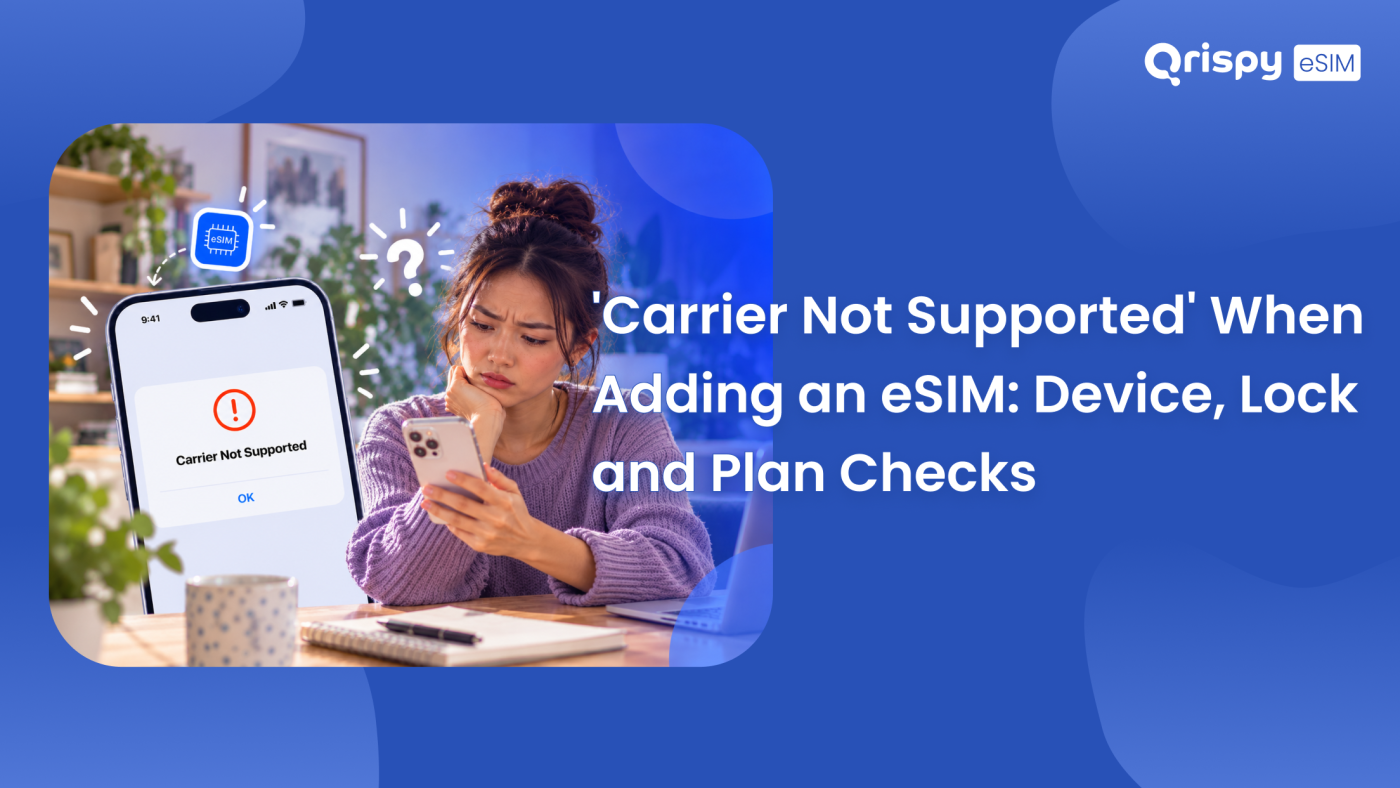
You tapped “Add eSIM”, the scan went through and the handset stopped you with “Carrier Not Supported”. Your signal is fine, the account is fine and the code you just scanned is probably fine too.
That message is your phone refusing the profile rather than a network turning you away. It comes from 3 blockers that share the same wording: a handset locked to an operator; a device policy or hardware restriction that forbids new cellular plans; a profile that is not eligible for the device or region you are using. Identify which of the 3 applies and the fix follows quickly, because the remedies have nothing in common.
What follows stays on that message. You get the difference between the 3 blockers, where to check each on iPhone and on Android, what you can clear yourself and what only an operator or an employer can lift. Handset model lists and the wider locked versus unlocked picture live in the Qrispy device compatibility checker, so you will get a pointer rather than a repeat.
What carrier not supported eSIM means
Before an embedded SIM (eSIM) profile is installed, your phone runs its own checks. The Local Profile Assistant (LPA), the software inside iOS and Android that handles profiles, looks at the operator behind the profile and compares it against what the device is allowed to accept. Those permissions come from the carrier lock state, from any management policy applied to the handset and from the capabilities of the hardware itself.
“Carrier Not Supported” is the outcome when a local check says no. Notice where the refusal happens: on the device, not on the provider’s server. A server-side rejection produces different wording about invalid or unavailable activation details, so the 2 problems feel similar but need opposite fixes. Chasing a server issue when your phone is locked wastes an afternoon.
What it does not mean
It does not mean your provider has no coverage where you are standing. It does not mean the plan was never issued or that your payment failed. Coverage is decided by roaming agreements once a profile is live, which is a stage this install never reached. Apple sets out the carrier, lock and regional requirements that sit behind these checks. The same logic applies on Android with different labels.
3 blockers behind the same message
- Carrier lock. The handset was sold tied to a single operator, so the software rejects any profile from a different network until the operator releases it.
- Device policy. A management profile from an employer or a school, a supervised configuration or a restriction set during enrolment can block adding cellular plans outright.
- Plan eligibility. The profile exists but was issued for a device type, a region or an account status that does not match the phone in your hand.
Hardware sits underneath all 3. A handful of regional handset variants ship without working eSIM support at all. A carrier-branded model can be built to accept profiles only from the operator that sold it. Those cases look identical from the outside, so treat hardware as the last thing you rule out rather than the first thing you blame.
Check the carrier lock first
Lock status is the quickest of the 3 to establish and it settles the most cases. On iPhone, open Settings, tap General, tap “About” and scroll to the “Carrier Lock” line. Wording that reads “No SIM restrictions” means the handset will accept any operator profile, so the blocker is elsewhere. A carrier name printed there means the device is tied to that operator and no travel profile will install until the tie is removed.
Android reports this less consistently. Some builds show a lock state under Settings, About phone, SIM status, while others show nothing useful at all, so the reliable route is to ask the operator that sold the handset. Have the International Mobile Equipment Identity (IMEI) ready when you call, since that is the number they use to look up the device record.
Getting a locked phone released
Only the operator that applied the lock can remove it. Contact them, quote the IMEI and ask for an unlock, then expect conditions around contract status, outstanding device payments or a minimum period of service. Those conditions vary by country and by operator, so check the current policy on your operator’s own site rather than trusting a figure quoted in a forum. Once released, the phone needs a restart before it will accept a new profile.
Rule out device policy limits
Work and school devices are the second big group. On iPhone, open Settings, tap General and look for a “VPN and Device Management” entry. Anything listed there means an organisation controls part of the configuration. Mobile device management (MDM) policies can quietly forbid new cellular plans. The restriction is invisible in the eSIM screens themselves, which is why the message reads as a carrier problem.
On Android, open Settings, tap Security and privacy, then look for device admin apps. You can also check whether a work profile badge appears on your apps. A managed handset shows an ownership notice under Settings, About phone on most builds. Your organisation’s information technology (IT) team can confirm the policy and, where the rules allow, grant an exemption for travel. Nothing you do on the device itself will override an active policy.
Personal handsets bought on an instalment agreement can carry similar limits, applied by the operator instead of an employer. The symptom is the same, the owner of the restriction is different.
Check what the plan allows
When the phone is unlocked and unmanaged, look at the profile. Providers issue profiles against a specific set of conditions, some of which are invisible on the receipt.
- The profile was created for a different device class, such as a tablet or a smartwatch plan that a phone will not accept.
- The plan is sold for a region that excludes the country you are currently sitting in, so the local check fails before download.
- The plan belongs to an account that requires an active primary line from the same operator, which is common on family or business tariffs.
- The activation window has closed, because a purchased profile can carry a deadline for first installation.
- The profile has already been installed on another handset, so the entitlement is spent.
Your provider can confirm every point on that list in moments. Ask them what the profile was issued for, not simply whether it is valid, because a profile can be perfectly valid for a device that is not yours.
Exact checks on iPhone
Run these in sequence and stop at the first check that explains the message. Settings, General, “About” gives you the “Carrier Lock” line plus the IMEI and the embedded Universal Integrated Circuit Card Identifier (EID). Settings, General shows any “VPN and Device Management” entry. Settings, “Mobile Service” (labelled “Cellular” when your iPhone is set to United States English) lists the plans already installed, which tells you whether the profile arrived on an earlier attempt.
There are 2 smaller steps worth taking before you contact anybody. Install any pending update under Settings, General, “Software Update”, because eSIM handling belongs to the operating system. Then restart the handset and try the install once more, since a stale carrier configuration occasionally produces this wording on a phone that is perfectly eligible.
Exact checks on Android
Labels move around between manufacturers, so treat these as the shape of the path rather than a fixed route. On a Pixel, open Settings, tap Network and internet, then SIMs, then the option to add or download a SIM. On a Samsung Galaxy handset, open Settings, tap Connections, then “SIM manager”, then “Add eSIM”. Both refuse in a similar way when the device is locked or managed.
For the supporting detail, Settings, About phone holds the IMEI, the EID and usually the ownership notice for a managed device. Google keeps its device help at Google Support. Your manufacturer publishes the exact strings its own build uses. If the handset was bought abroad, check with the seller whether that model variant supports eSIM at all before you spend time on the software.
Match the message to the blocker
| What you find | Blocker | Who can clear it |
|---|---|---|
| A carrier name under “Carrier Lock” | Carrier lock | The operator that sold the handset. |
| A management profile or work profile listed | Device policy | Your employer or school IT team. |
| Unlocked phone, refusal on every profile | Hardware variant | Nobody, so use a different handset. |
| Unlocked phone, a single profile refused | Plan eligibility | The provider that issued the profile. |
| Refusal only after a recent update | Stale configuration | You, with a restart and update. |
When the device is the blocker
Some outcomes have no software fix. An operator can refuse an unlock while a contract runs, an employer can decline an exemption and a regional handset variant without eSIM support will never accept a profile. In each case the practical answer is a second device, whether that is an older unlocked phone kept for travel or a personal handset carried beside the managed work phone.
Before buying anything, confirm the model rather than guessing. Qrispy works on unlocked, eSIM-compatible devices, so run the handset through the compatibility checker linked above and settle the question in seconds. Once a device passes, the setup is short: install One eSIM, keep it on the phone permanently and buy data against it for each trip through Qrispy eSIM plans for your destination, with coverage across 210+ countries and regions.
That structure matters here because it removes the repeat exposure. You clear the device question once instead of meeting it again at every airport. Credit in the Global Wallet never expires, so an unlock that takes a fortnight costs you nothing but patience.
How to avoid it next time
- Check the “Carrier Lock” line before you buy any travel data, not after the refusal.
- Ask your IT team about travel eSIM policy before a work trip, since exemptions take time to approve.
- Buy handsets unlocked where you can, because an unlocked device removes the most common blocker entirely.
- Confirm the plan was issued for a phone rather than a tablet or a watch when you order.
- Install the profile at home, where a refusal is an inconvenience instead of an emergency.
Frequently asked questions
Is my phone locked or blocked?
Check the “Carrier Lock” line under Settings, General, “About” on iPhone. Wording that says “No SIM restrictions” means it is not locked, so the blocker is a management policy, a plan condition or the hardware. On Android the state is reported inconsistently, so quote your IMEI to the operator that sold the handset and ask them directly.
Can I unlock the phone myself?
No. Only the operator that applied the lock can release it. The request goes through their own support channel with your IMEI. Conditions differ by country and by operator, covering things like contract status or outstanding device payments, so read the current policy on the operator’s own site. After the release lands, restart the phone before trying the install again.
Does a work profile block eSIMs?
It can. Mobile device management lets an organisation forbid new cellular plans. The refusal then surfaces as an unsupported carrier rather than a policy warning. Look under Settings, General for “VPN and Device Management” on iPhone. On Android, look for a work profile badge. Your IT team can confirm the rule and approve an exemption where the policy allows it.
Will a different plan work instead?
Sometimes. The answer either way tells you a lot. If a second profile from a different provider installs cleanly, the first plan had an eligibility problem rather than the phone. If every profile is refused on an unlocked, unmanaged handset, the restriction sits in the device itself and you need different hardware for travel data.
Does the message mean bad coverage?
No. Coverage is decided after a profile is live, when the network chooses which local partner to connect you through. This refusal happens earlier, while the phone is still deciding whether it may accept the profile at all, so a strong signal and a full set of bars tell you nothing useful about it.
Stay connected anywhere with Qrispy eSIM
Stay connected in 210+ countries with Global Wallet, Fixed Plans and Unlimited Data. No contracts, no roaming fees, no expiry. Download the Qrispy eSIM app today and start your journey.